Installation
EagleCast TV Installation & Device Guide
Every platform installs and runs apps in its own way. This page walks through each type of device: what it runs, where to find its details, and what to check before you set anything up.
A note on how to read this page. These notes describe the devices themselves: their systems, app stores and settings menus. Step-by-step EagleCast TV setup guides are added one platform at a time, and only once their steps have been checked on that type of device.
Until the guide for your device is published, check the details below and send them to us. We'll point you to the right steps.
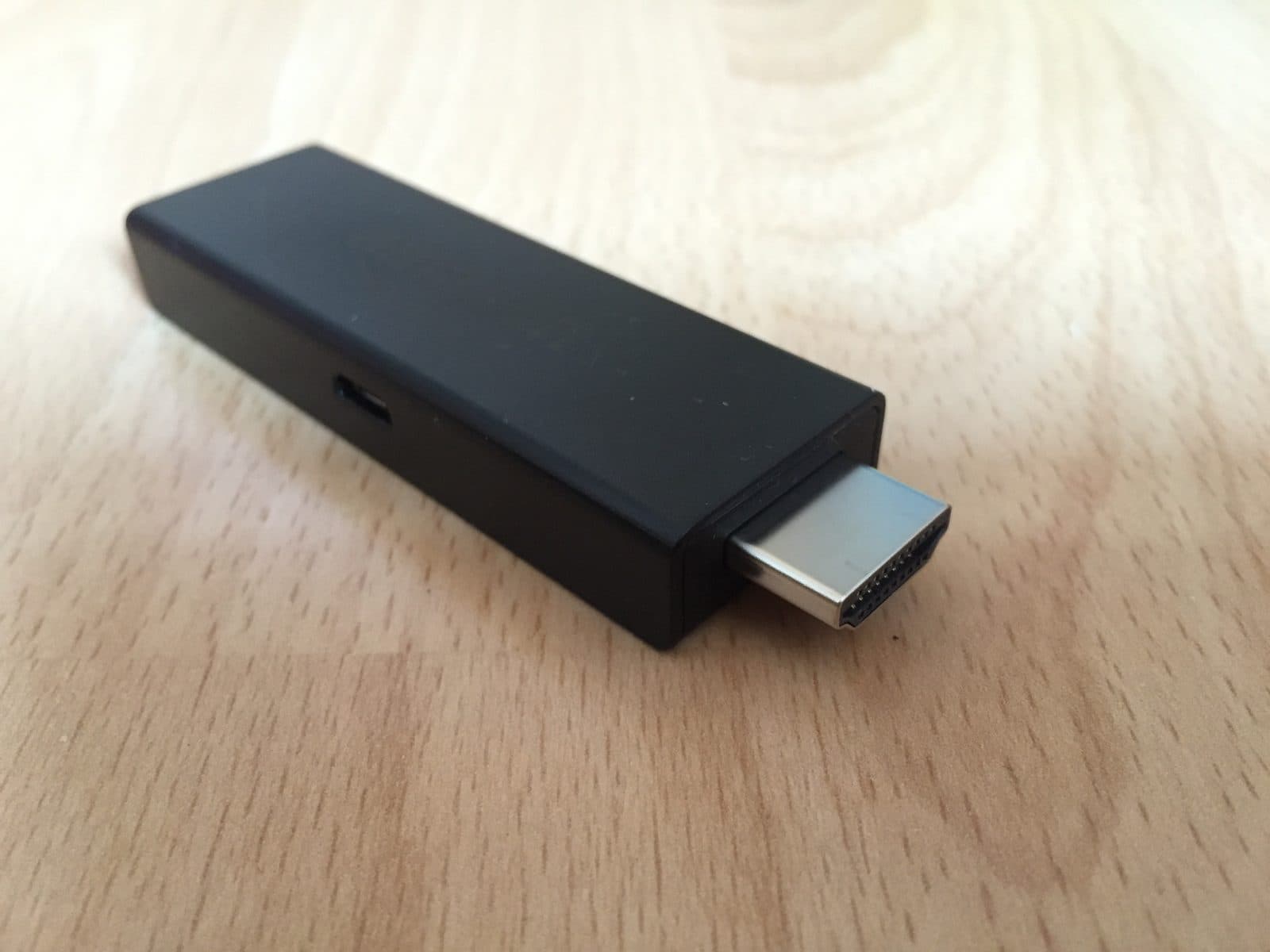
EagleCast TV on Amazon Fire TV
Amazon's Fire TV range covers plug-in sticks, the Fire TV Cube and TVs with Fire TV built in. Most of these run Fire OS, which is based on Android, and install apps from the Amazon Appstore.
A few newer models run Amazon's Vega OS instead. It handles apps differently and doesn't run Android apps, so check which system your device uses before you go any further.
Find your model and version
- Model and software version
- Settings → My Fire TV → About
Before you set up
- Install any pending system updates from the same About screen.
- Make sure the device has enough free storage. Low storage is a common cause of apps closing unexpectedly.
- If the picture stutters, try moving the router closer or using the HDMI extender that came with the stick.
Setup guide not published yet. Send us your model and software version and we'll help you get started.
Contact support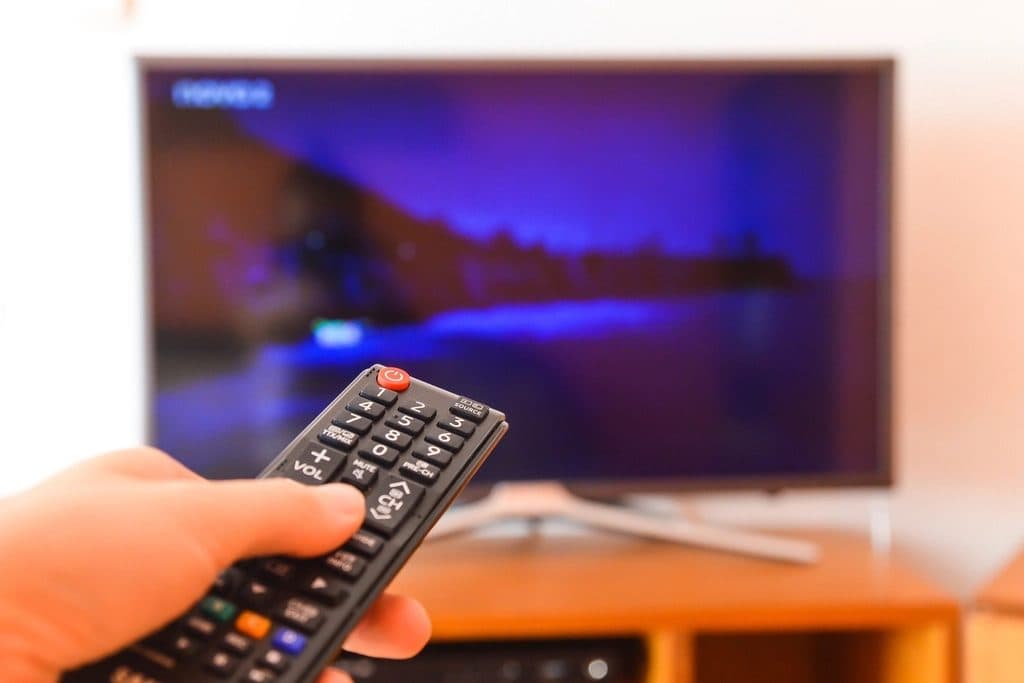
EagleCast TV on Android TV & Google TV
Android TV and its newer interface, Google TV, are built into many televisions from brands such as Sony, TCL, Hisense and Philips, as well as streaming devices like the Google TV Streamer and NVIDIA Shield. Apps come from the Google Play Store.
The two look different, and the settings menus are laid out differently too. The steps below cover both.
Find your model and version
- Google TV
- Settings → System → About
- Android TV
- Settings → Device Preferences → About
Before you set up
- Check for system updates on the About screen and app updates in Google Play.
- Sign in to Google Play on the device so you can install apps.
- If your TV is a few years old, note the Android TV OS version. Some apps need a recent one.
Setup guide not published yet. Send us your model and software version and we'll help you get started.
Contact support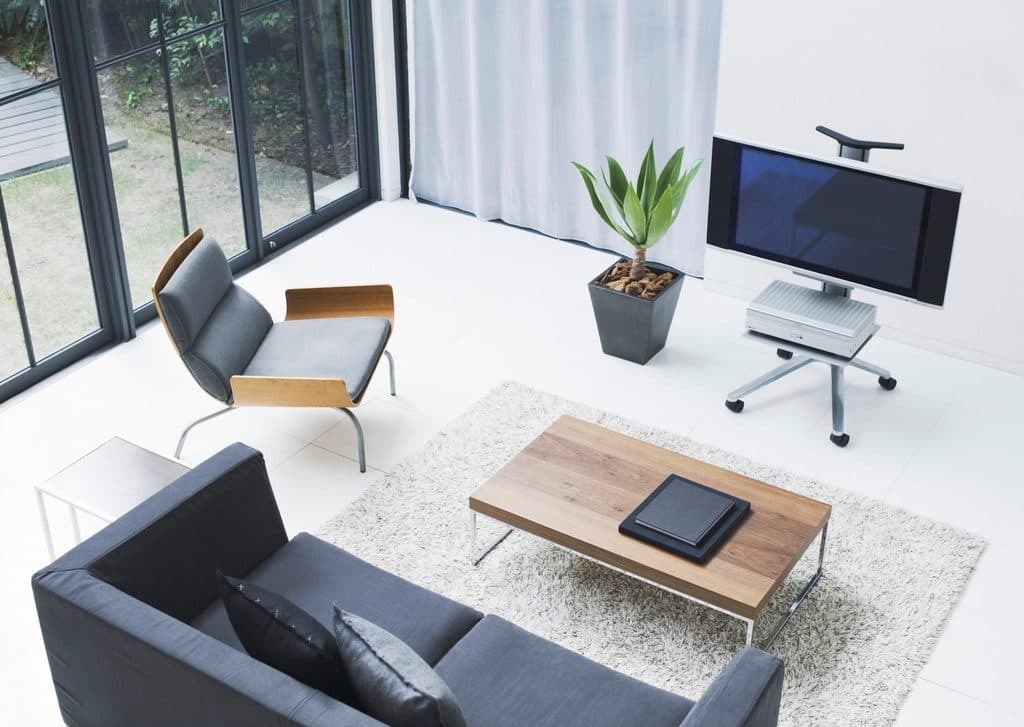
EagleCast TV on Smart TVs
Smart TVs don't share one platform. Samsung TVs run Tizen, LG TVs run webOS, and other brands use systems such as VIDAA, Roku TV, Google TV or Android TV. Each has its own app store, and the apps on offer can differ by model year and country.
If your TV runs Google TV or Android TV, use the Android TV notes instead; they'll be a closer match.
Find your model and version
- Samsung (Tizen)
- Settings → Support → About This TV
- LG (webOS)
- Settings → All Settings → General or Support → About This TV / TV Information
- Any brand
- The model number is also printed on a label on the back of the TV.
Before you set up
- Update the TV's software from its settings menu. Older firmware is a frequent cause of app problems.
- Note the model number and the year the TV was made, if you know it.
- If an app isn't offered on your TV, a streaming stick or box is often the simplest workaround.
Setup guide not published yet. Send us your model and software version and we'll help you get started.
Contact support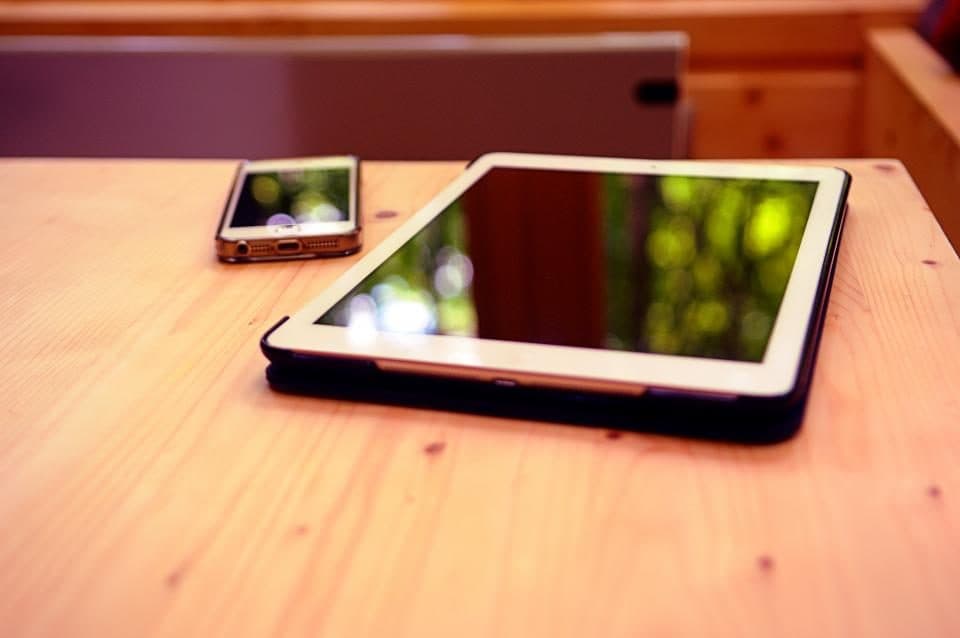
EagleCast TV on Smartphones & Tablets
Phones and tablets are useful for watching around the house or keeping an eye on something while the main TV is busy. iPhone and iPad get apps from Apple's App Store; Android phones and tablets use Google Play.
Menus on Android vary by manufacturer, so the path to your software details may be worded slightly differently on your device.
Find your model and version
- iPhone and iPad
- Settings → General → About
- Android
- Settings → About phone (or About tablet), sometimes under Software information
Before you set up
- Update the operating system and check you have free storage.
- Decide whether you'll mostly use Wi-Fi or mobile data. Video can use a lot of a data allowance.
- Turn on auto-rotate if you'd like full-screen playback when you turn the device sideways.
Setup guide not published yet. Send us your model and software version and we'll help you get started.
Contact support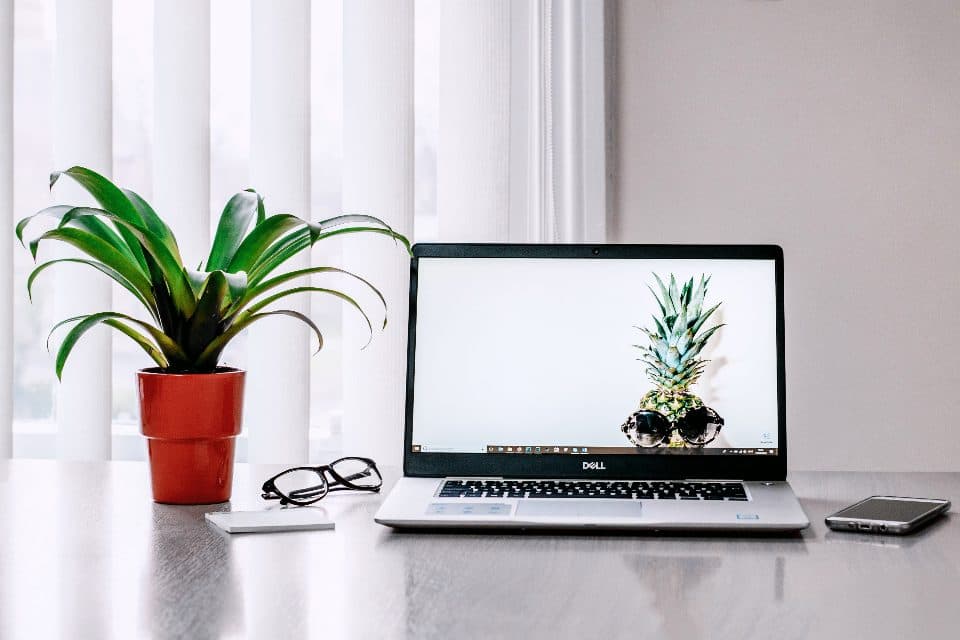
EagleCast TV on Computers
A laptop or desktop can be a comfortable way to watch at a desk, or to work through a few settings with a full keyboard. Most people will be on Windows or macOS.
Whatever you use, an up-to-date operating system and browser avoids a lot of playback problems before they start.
Find your model and version
- Windows 10 and 11
- Settings → System → About
- Mac
- Apple menu → About This Mac
Before you set up
- Install pending system updates and update your browser.
- Browser extensions that block scripts or ads can interfere with video players; try a private window if something doesn't load.
- For the steadiest picture on a laptop, plug into power and stay close to the router.
Setup guide not published yet. Send us your model and software version and we'll help you get started.
Contact support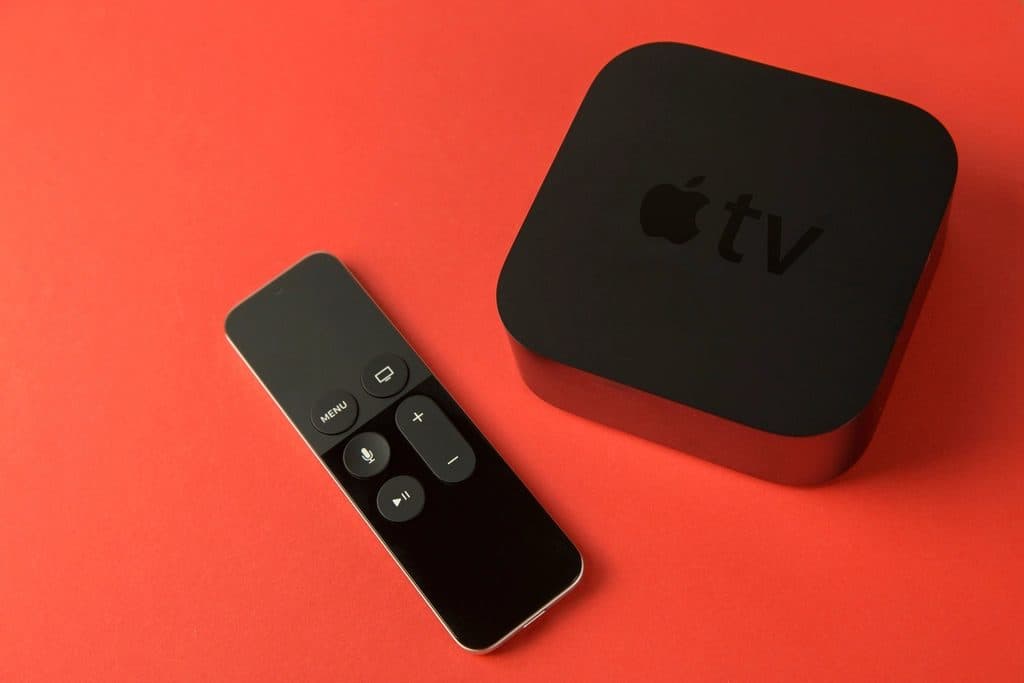
EagleCast TV on Streaming Boxes
Set-top streaming boxes cover a lot of ground. Certified Android TV boxes come with Google Play and behave like the Android TV devices above. Many budget Android boxes run a modified version of Android with their own app store, often on an older release.
Apple TV and Roku devices are streaming boxes too, but they run their own systems (tvOS and Roku OS) with their own app stores.
Find your model and version
- Android-based boxes
- Settings → Device Preferences → About, or Settings → About
- Apple TV
- Settings → General → About
- Roku
- Settings → System → About
Before you set up
- Check whether Google Play came preinstalled. That's a good sign the box runs certified Android TV.
- Note the Android version. Very old versions may not run current apps.
- Connect the box with an Ethernet cable if it has a port. It's usually steadier than Wi-Fi.
Setup guide not published yet. Send us your model and software version and we'll help you get started.
Contact supportGetting help
Have These Ready Before You Contact Support
A few details make the difference between a quick answer and a long back-and-forth.
- Your device's model name or number
- Its software version (Fire OS, Android TV OS, iOS, Windows and so on)
- How it connects to the internet: Wi-Fi or a cable
- What you were trying to do, and any error message, word for word
Found Your Device? Here’s What’s Next
Read up on the features, browse the FAQ, or send us your device details if you'd like a hand.